


Registration
Before you register, make sure each provider (PTAN/NPI combination) has an Electronic Data Interchange (EDI) Enrollment Agreement on file with CGS. If not, please complete and submit the correct form:
- HHH EDI Enrollment
- Part A EDI Enrollment
- Part B EDI Enrollment
Registration Process
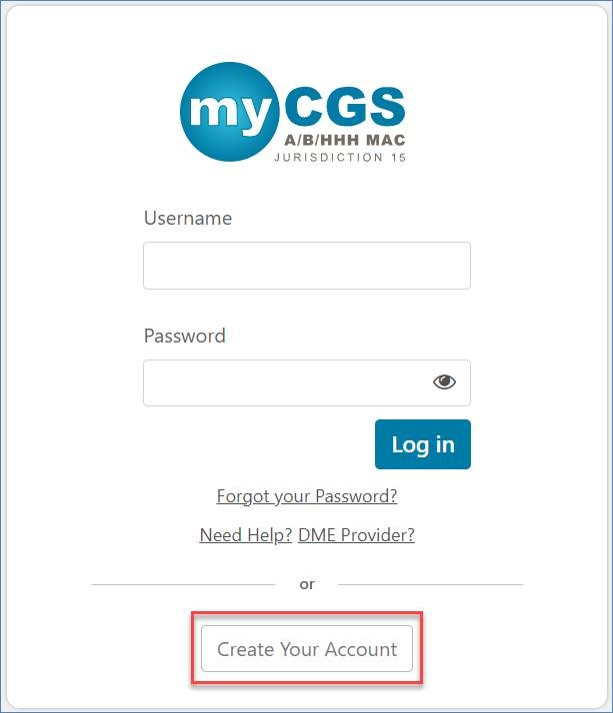
- Go to myCGS Login.
- Click Create Your Account.
- Terms of Use: Please review. If you agree, click ACCEPT.
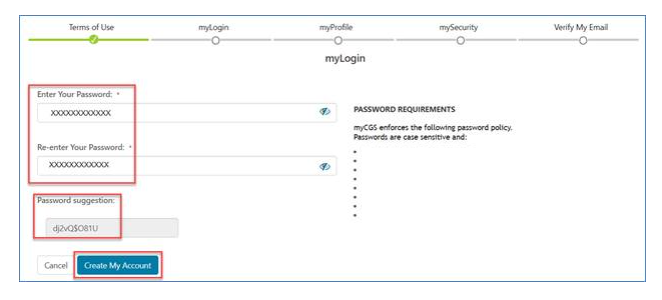
- Enter/Re-enter Your Password: Type a password that you create using the requirements shown on the screen or the password suggestion.
Click Create My Account.
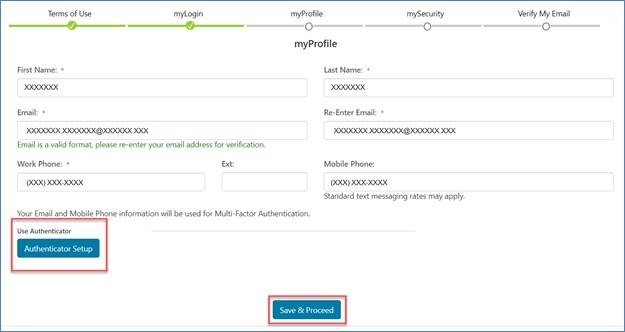
- myProfile:
- Type your:
- First name
- Last name
- Email address
- Re-enter email address
- Work phone number
- Work phone extension
- Mobile phone number (not required; allows myCGS to send Multi-Factor Authentication (MFA) codes for future logins)
- Click Authenticator Setup (to use Google Authenticator as a third option to receive MFA codes for future logins; you can also complete this step later; see My Account.)
- Click Save & Proceed.
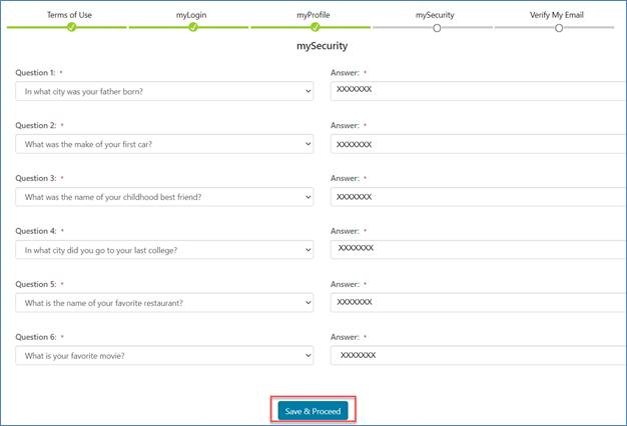
- Type your:
- mySecurity: Select security questions and type your answers (used to confirm your identity if you forget your password and need to reset it).
Click Save & Proceed.
- Email Verification: You'll receive an email with a 7-digit code.
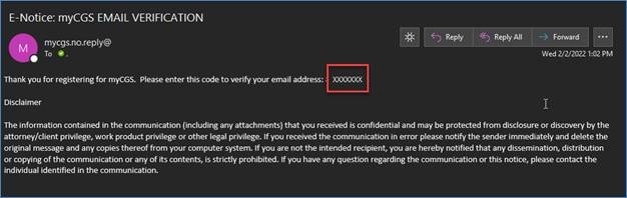
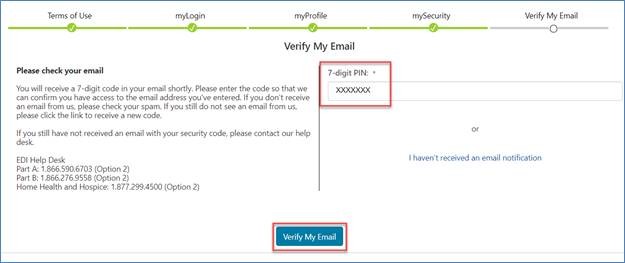
- Verify My Email: Type your 7-digit PIN; click Verify My Email.
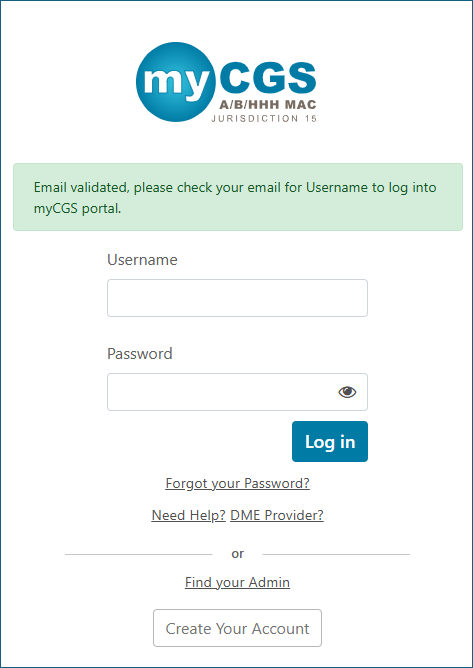
- The myCGS login and “email validated” message displays. Your myCGS registration is complete; you may log in to use the portal.
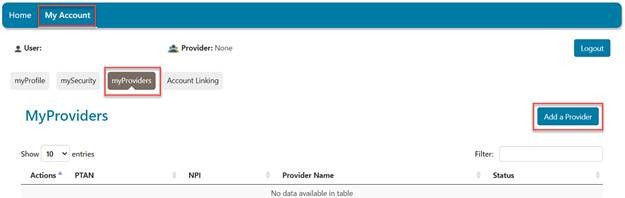
- See My Account / myProviders to continue your account setup (e.g., add provider account(s) and permissions).

 Join Electronic Mailing List
 Print
Print Bookmark
 Facebook
 YouTube
 LinkedIn