


Confirm/Verify Changes
When changes (such as those noted above) are made to any of the sub-tabs, you must save your changes.
- Click "Submit"to save your updates.
- In some cases, a simple message will display confirming the changes requested.
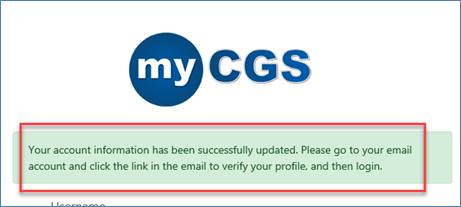
- In other cases, myCGS will default to the login screen, displaying a message to confirm an update was made to your information. You will be directed to your e-mail to click on a verification link.
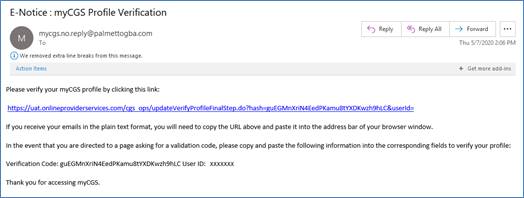
- Click the link in your e-mail.
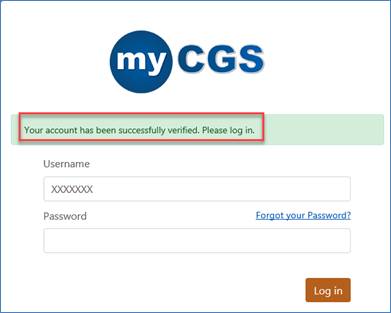
- A new browser window will open, displaying a message confirming verification. You may log back in from this screen.

 Join Electronic Mailing List
 Print
Print Bookmark
 Email
Email Facebook
 YouTube
 LinkedIn