

Using the MBI Look-Up Tool
If you need to obtain a patient's MBI:
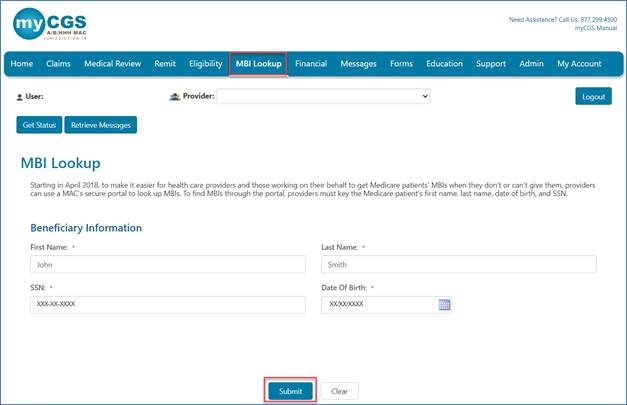
- Once logged into myCGS, click on the MBI Look-up tab.
- Complete the required fields:
- Patient's first name
- Patient's last name
- Patient's social security number
- Patient's date of birth
- To meet our reCAPTCHA requirements, you may have to select the "I'm not a robot" box.
- NOTE: A reCAPTCHA image may display requiring you to select specific squares of the image.

- NOTE: A reCAPTCHA image may display requiring you to select specific squares of the image.
- Click "Submit."
- If the information entered can be verified, myCGS will display the patient's MBI in the lower-left corner of the page.

- To search for a new MBI, either click the "Clear" button and enter new identifying information or enter the new information and click the "Submit Inquiry"button.
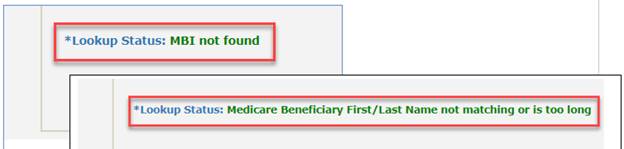
- If the social security number entered is not correct or the patient's name does not match our files, an error message will display.

 Join Electronic Mailing List
 Print
Print Bookmark
 Email
Email Facebook
 YouTube
 LinkedIn