


Part A and HHH Cancel Claim and Cancel Line
You are now able to fully cancel or cancel a line on your Part A and Home Health and Hospice claims that you have submitted to CGS for processing.
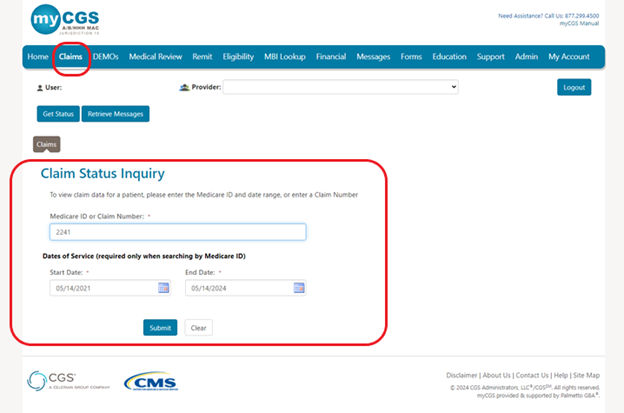
To cancel a claim or a line on your submitted claim you will access Claims Tab and complete a “Claims Status Inquiry” with either the Medicare ID or Claim Number and click “Submit” as in the example below:
You will get a list of claims submitted for that Medicare ID or the Claim Number will display the claim as below:
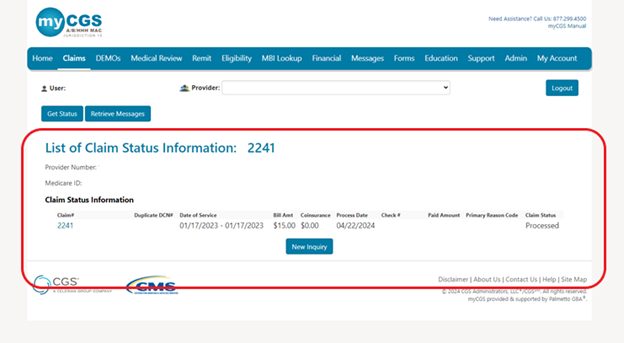
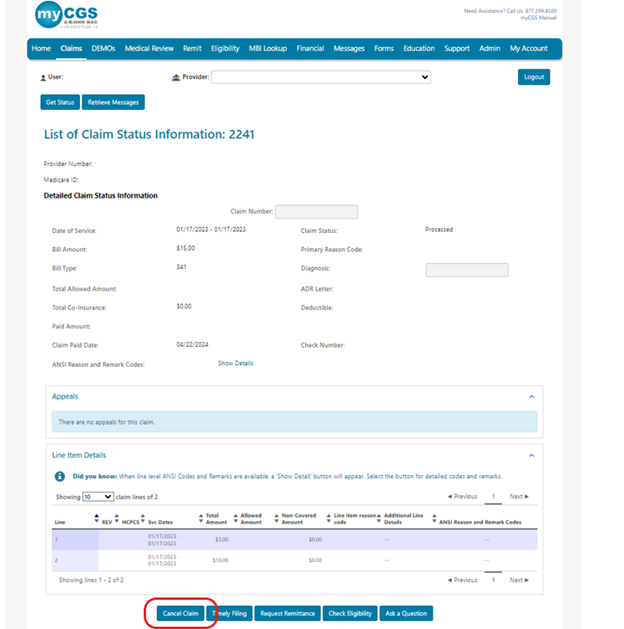
Now click on the “Claim #” in blue to be taken to the “Claim Status Information” screen and then you will click on the “Cancel Claim” button at the bottom of your screen as seen below:
Clicking the “Cancel Claim” button will take you to the Cancel Claim/Line screen where your provider information will auto populate except for the “Provider Phone Number”.
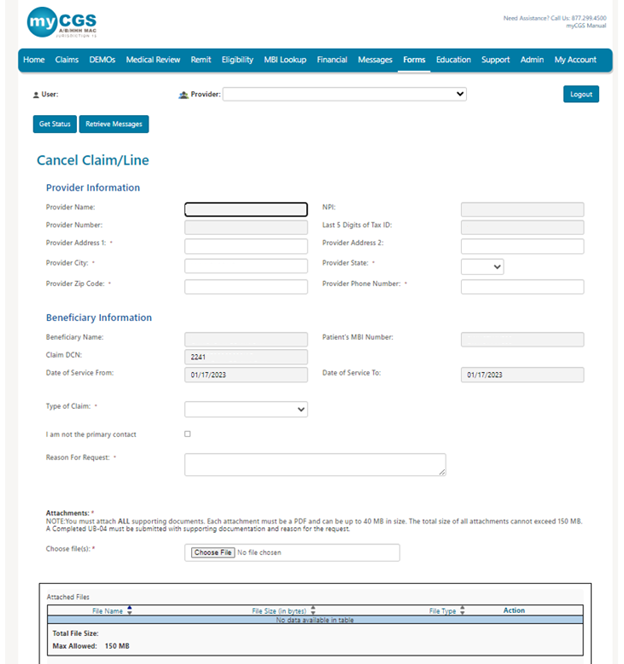
- You will need to key in your “Provider Phone Number” as this the contact number you may want us to reach out if necessary.

- Choose Type of Claim drop down
- Cancel Medically Denied Claim – choose this to fully cancel a claim
- Cancel Medically Denied Line – choose this to cancel a certain line on a claim or multiple lines on a claim
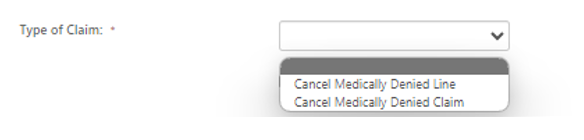
- If need to cancel a line on a claim you will enter the Claim Line here and click add. You can enter multiple claim lines if you need to cancel multiple lines on a claim by entering in the number and

- If you selected the wrong claim line you can select the trash can to remove and re add the correct line.

- If you are not the final contact that will handle any questions, please check the
 box and enter in the following:
- Primary Contact Name
- Primary Contact Phone Number
- Please key in the Reason for Request
- Up to 100 characters can be submitted

- Up to 100 characters can be submitted
- Attachments:
NOTE: You must attach ALL supporting documents. Each attachment must be a PDF and can be up to 40 MB in size. The total size of all attachments cannot exceed 150 MB. A Completed UB-04 must be submitted with supporting documentation and reason for the request.
- Choose File
- Attached file can be viewed under Attached files.
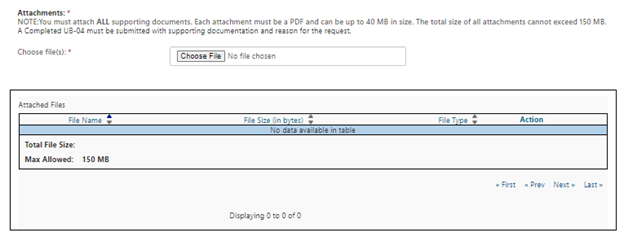
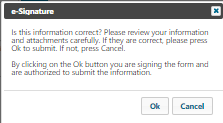
- Now you will click submit at the bottom of the screen and will get a pop up like this:
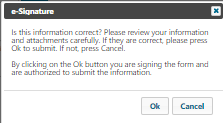
- Click okay and you have successfully submitted a Cancel Claim or Cancel Line request.
- If fields are missing fields, you will get message “Please review data entered”
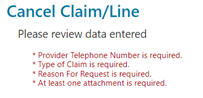
- Once you have corrected any missing data you will click “Submit” again and click “Ok” on this pop up
- You will receive a notice under the Messages tab that you have submitted a Cancel Claim or Cancel Line request.

 Join Electronic Mailing List
 Print
Print Bookmark
 Email
Email Facebook
 YouTube
 LinkedIn