

myCGS User Manual

Use the Financial tab to:
- Submit Financial Forms (i.e., CMS-838 Credit Balance report and immediate offset request).
- View Overpayment Data (i.e., accounts receivable, overpayment demand letter details and remaining balances).
- Access your Cash Flow Snapshot (i.e., payment floor status, last 3 checks and payment history).
Financial Forms
The Financial Forms sub-tab options are:
- CMS-838 Credit Balance (Part A, home health and hospice providers only)
- eOffset
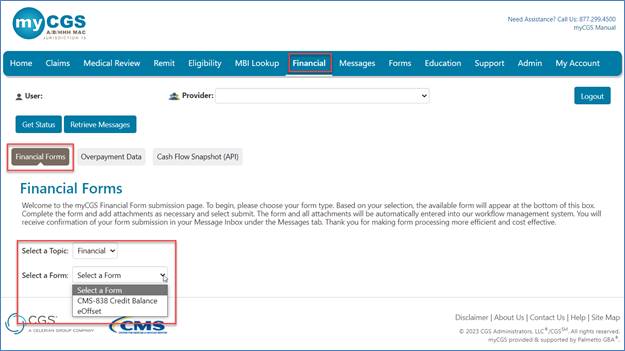

CMS-838 Credit Balance
This function allows Part A, home health and hospice providers to submit al Medicare Credit Balance Report (CMS-838) electronically.
See the J15 Part A and J15 HHH Medicare Credit Balance Report (CMS-838) webpages for information about credit balances and when to submit a Credit Balance Report.
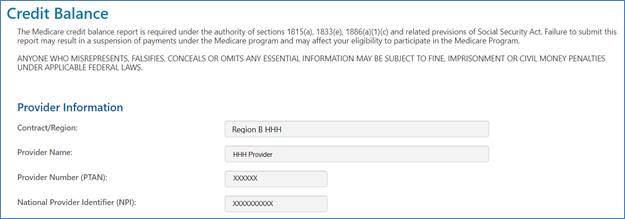
To access the myCGS form, choose CMS-838 Credit Balance from the "Select a Form" drop-down menu. The Provider Information fields will pre-populate based on your user ID.
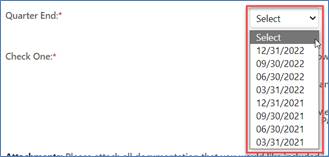
Select the appropriate Quarter End date.
Check the appropriate selection:
- Qualify as a Low Utilization Provider
- The Credit Balance Report Detail Page(s) is attached.
- There are no credit balances to report for this quarter (No Detail Pages(s) attached).

Attachments
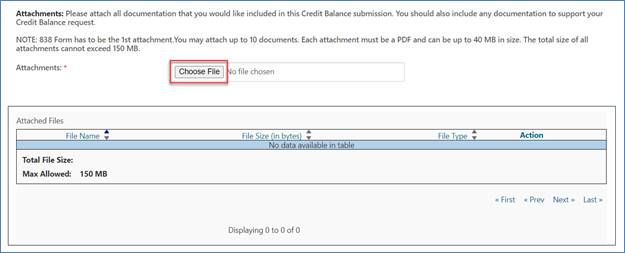
Use the "Choose File" button to attach your completed CMS-838. You may attach additional files, if necessary.
NOTE: Attachments must be in PDF format. Failure to use the appropriate software to create a PDF may result in a corrupt file and unsuccessful submission.
The size limit for each attachment is up to 40 MB. The combined size for all attachments can’t exceed 150 MB
.
Signature/Contact
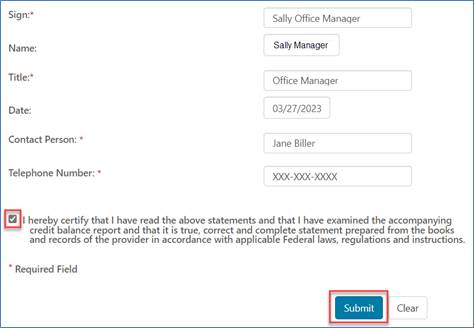
Enter the name and title of the person authorized to submit the report. The contact information may pre-populate based on your user ID.
NOTE: Although the Sign field is required, CGS can’t accept electronic signatures. Please ensure the Medicare Credit Balance Report (CMS-838) is the first attachment and includes a handwritten signature .
Verify the myCGS form and attachments are accurate, check the box to certify, and click Submit.
Confirmation Messages
Check your myCGS Message Inbox (see Messages tab). You should receive a message to confirm a successful submission. Once the submission is accepted, you’ll receive another message that includes a Submission ID and instructions to check status.
Immediate Offset (eOffset)
myCGS allows you to submit an electronic authorization allowing us to offset funds to satisfy a pending overpayment due using an electronic eOffset Request Form. This authorization may be submitted each time a demanded overpayment is received or authorizes a permanent request for all future demanded overpayments. You may also monitor the status of the requests submitted through myCGS.
- To access the form, select eOffset from the "Select a Form" drop-down. The eOffset page will display. It provides an explanation of the process and critical timeframes. There is also an option to select one of three eOffset forms
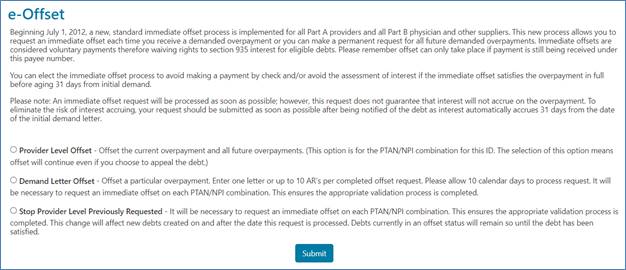
- Provider Level Offset: This option allows you to establish immediate offsets for any current and future overpayments.
- Demand Letter Offset: This option is selected if you have received a demand letter from CGS requesting an overpayment be returned and you would like to request a one-time offset.
- Stop Provider Level Previously Requested: Select this option to stop automatic offsets for future overpayments.
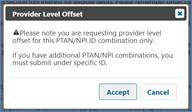
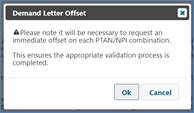
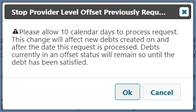
Once you select an option and click "Submit" a disclaimer box will display to confirm timeframes and to ensure you have selected the correct form.
Provider Level Offset
After accepting the disclaimer, the Provider Level Offset form will display. Most fields will show pre-populated with information based on your provider and user ID. Complete the remaining fields.
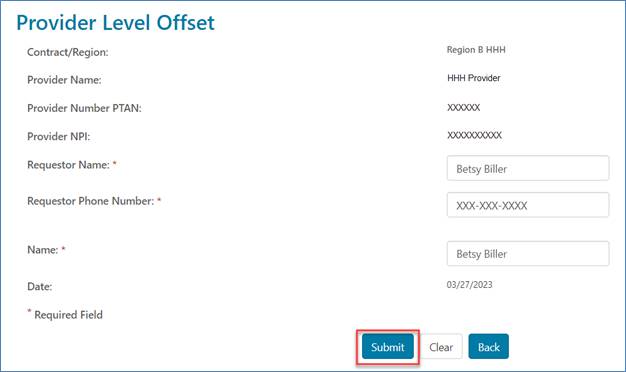
After completing the required fields, click Submit to send the request for automatic offset for future overpayments.
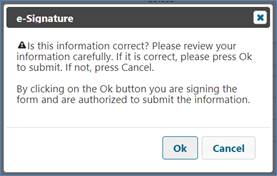
An 'e-signature' box will appear, asking you to verify that the information entered is correct. This ensures thesignature requirement for all requests have been met. Click OK if you agree or Cancel to return to the form to make changes/corrections.
After submitting the form, you will be taken to the Message tab. Shortly after submission, you will receive a confirmation message acknowledging receipt of the eOffset request. A separate message will be sent to your inbox which will include a Submission ID assigned to your request. This ID may be used to check the status of your submission.
Demand Level Offset
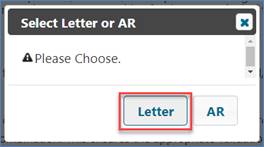
When selecting the option for a one-time immediate offset, a window will display allowing you to submit your request based on either the offset letter you received from CGS, or up to ten Accounts Receivable (AR) numbers identified on an attachment to the demand letter.
Letter Option
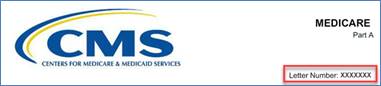
Selecting the Letter option allows you to enter the number located in the upper-right header area of the demand letter to request the immediate offset.
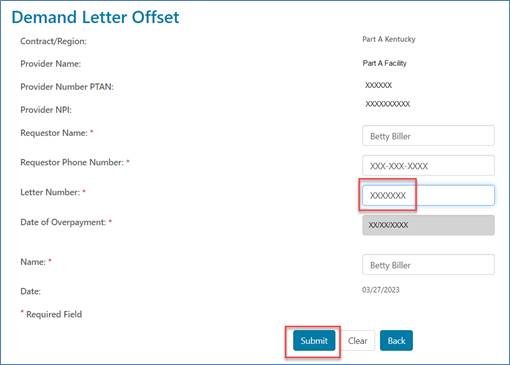
The Letter option form will display pre-populated with information based on your provider and user ID. You must complete the remaining fields.
When you enter the Letter number please verify that it is correct, as the field for the date of the overpayment letter will auto-populate.
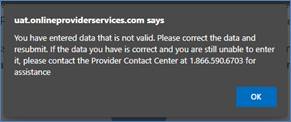
If the letter number entered is not correct, the date to respond has passed, or if the demand has been satisfied, an error message will display.
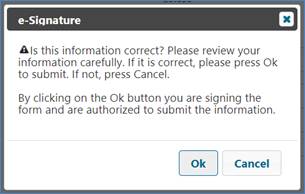
After completing the required fields, click Submit to send the request for one-time offset An 'e-signature' box will appear, asking you to verify that the information entered is correct. This ensures the signature requirement for all requests have been met. Click OK if you agree or Cancel to return to the form to make changes/corrections.
After submitting the form, you will be taken to the Message tab. Shortly after submission, you will receive a confirmation message acknowledging receipt of the eOffset request. A separate message will be sent to your inbox which will include a Submission ID assigned to your request. This ID may be used to check the status of your submission.
AR Option:
Selecting the AR option allows you to request a one-time immediate offset using the Accounts Receivable number assigned to the request.
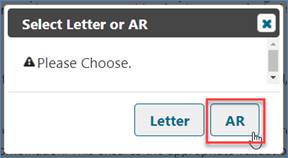
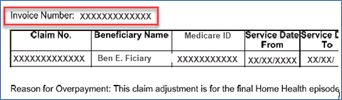
Using the AR option, you may enter up to ten AR numbers, which are identified on an attachment to the demand letter.
The form will display pre-populated with information based on your provider and user ID. You must complete the remaining fields.
When you enter the AR number, please verify that it is correct, as fields for the date of the overpayment letter and overpaid amount will auto-populate.
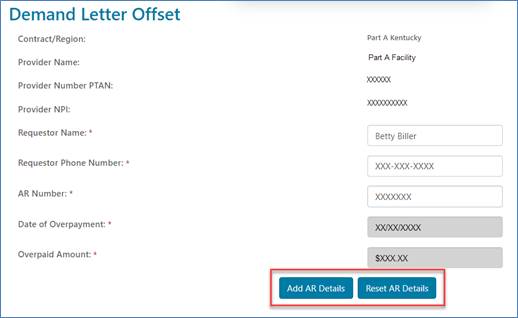
Once all fields are completed, click the Add AR Details button. All information will be added to the form. Enter additional ARs if submitting a request for more than one AR under the PTAN/NPI. Up to ten ARs may be entered on the same form.

After entering all ARs and the name of the person authorized to make the one-time immediate offset request, click Submit.
An 'e-signature' box will appear, asking you to verify that the information entered is correct. This ensures thesignature requirement for all requests have been met. Click OK if you agree or Cancel to return to the form to make changes/corrections.
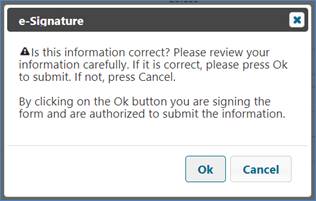
Next, a message box will ask if you have additional ARs to enter. If so, press ADD. myCGS will submit the ARs you entered, then take you back to the form to enter more. If there are no additional ARs to be entered, press SUBMIT.
After submitting the form, you will be taken to the Message tab. Shortly after submission, you will receive a confirmation message acknowledging receipt of the eOffset request. A separate message will be sent to your inbox which will include a Submission ID assigned to your request. This ID may be used to check the status of your submission.
Stop Provider Level Offset Previously Requested
This form is to be used when you've previously submitted the Provider Level Offset form to authorize the immediate offset of all future demands but would now like to cancel that request.
After accepting the disclaimer, the Stop Provider Level Offset form will display. Most fields will show pre-populated with information based on your provider and user ID. Complete the remaining fields.
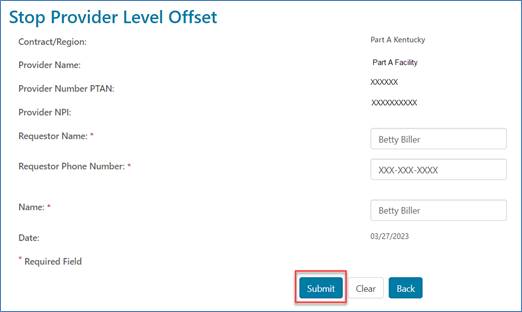
Verify information entered is correct. Click Submit to send the request.
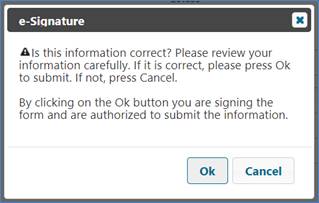
An 'e-signature' box will appear, asking you to verify that the information entered is correct. This ensures thesignature requirement for all requests have been met. Click OK if you agree or Cancel to return to the form to make changes/corrections.
After submitting the form, you will be taken to the Message tab. Shortly after submission, you will receive a confirmation message acknowledging receipt of the eOffset request. A separate message will be sent to your inbox which will include a Submission ID assigned to your request. This ID may be used to check the status of your submission.
Overpayment Data
This sub-tab allows you to better manage your finances and overpayments. Detailed account receivable (AR) information, details on overpayment demand letters, remaining balances, etc., are all available to you.
To access your overpayment information, select the "Overpayment Data" sub-tab.
Locate either the Overpayment Demand Letter Number (located in the upper-right corner of the letter) or the Invoice Number (located in the attachment to the letter).
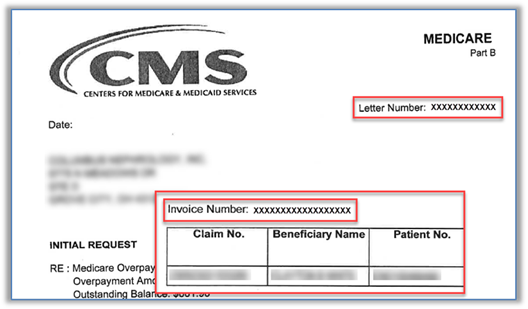
Enter the Letter Number or Invoice Number in the appropriate field and click Submit.
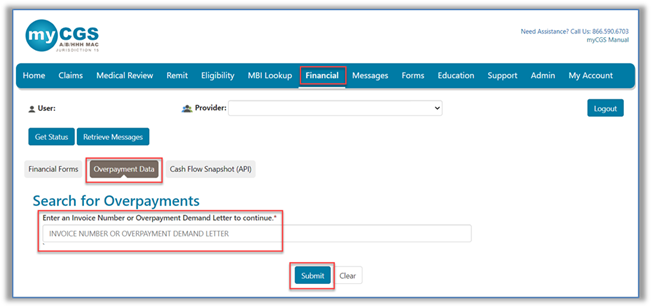
myCGS will display all overpayment details specific to the number entered including:
- Dates of AR demand letters and the number of associated overpayments
- Overpayment amounts and principal balances
- Any late fees or interest accrued
- A separate section showing all transaction activities completed on the demand
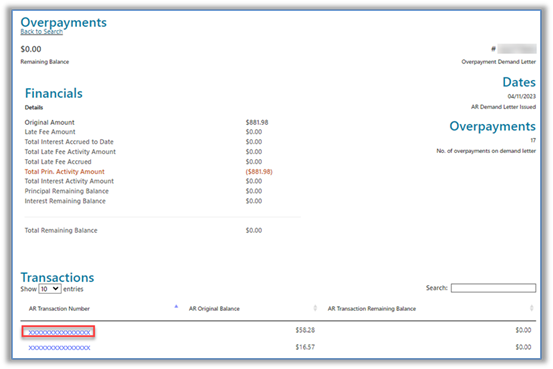
Click on the AR Transaction Number for details on the specific claim and beneficiary involved.
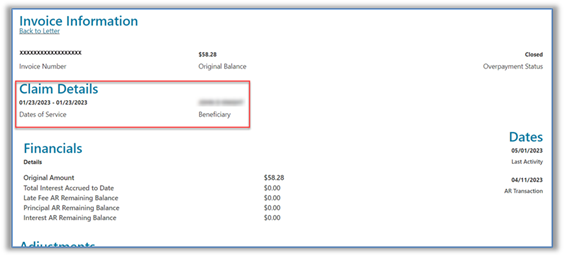
The access you have to this information ties into the Immediate Offset (eOffset) process. Refer to that section (above) for additional information.
Cash Flow Snapshot
This sub-tab provides you with an overview of financial data specific to the registered PTAN/NPI. It identifies payments you can expect to receive in the future as well as payment history information.
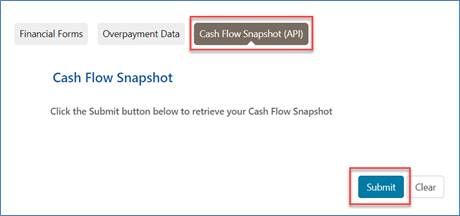
To access your financial information, select the "Cash Flow Snapshot" sub-tab. To populate the page, click the "Submit" button.
Payment Floor Status
Medicare contractors are required to hold payments for a minimum predetermined number of days before payment is sent to providers. For example, for Part B providers the payment floor for electronic claims is 14 days; 29 days for paper claims. This section refers to all claims approved for payment waiting to be released from the payment floor as of the current date.
- Total Claims: The number of claims that are approved for payment.
- Total to be Paid: The total amount of the claims on the payment floor.
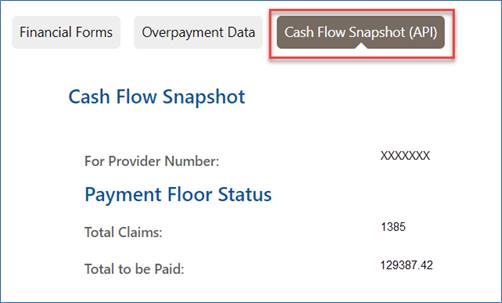
NOTE: The number and total dollar amount of claims on the payment floor could change daily. Claims will continue to be added to the payment floor as they are approved; some will be paid from the payment floor once they reach payment date.
Last 3 Checks
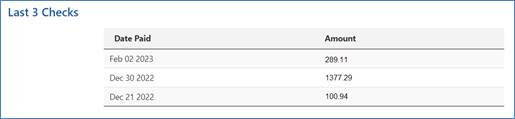
You will find a list of the last three checks issued to the billing provider. The dates and amounts of the checks are identified here.
Payment History
This section of the page will list payments issued to you within a specific period. It defaults to the last 30 days but you may change the From/To dates and click "Submit."
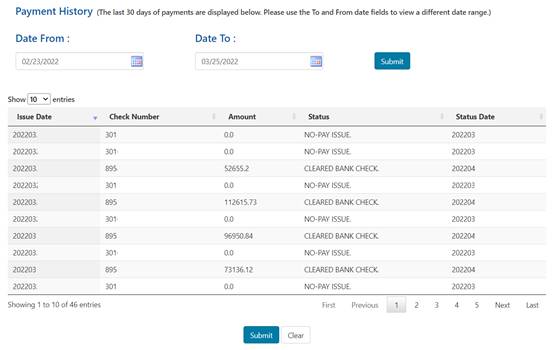
You may sort the list by clicking on the column header (i.e., Issue Date, Check Number, Amount, Status, Status Date.)
 Join Electronic Mailing List
 Print
Print Bookmark
 Email
Email Facebook
 YouTube
 LinkedIn